Add Users and Installers
Site administrators can invite users and assign a role. Access rights are configured separately from the role.
Add a user
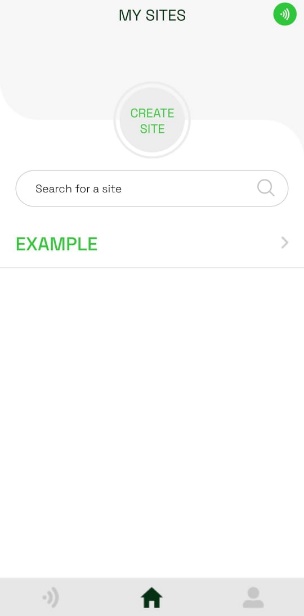
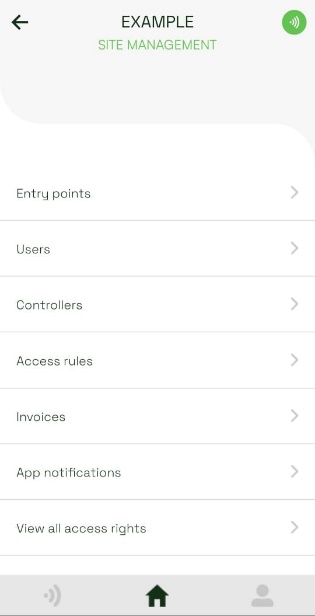
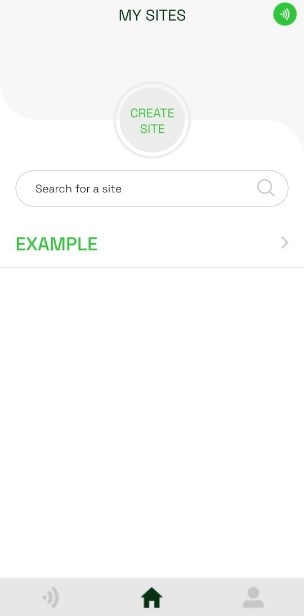
- Open the Type D site and tap Users.
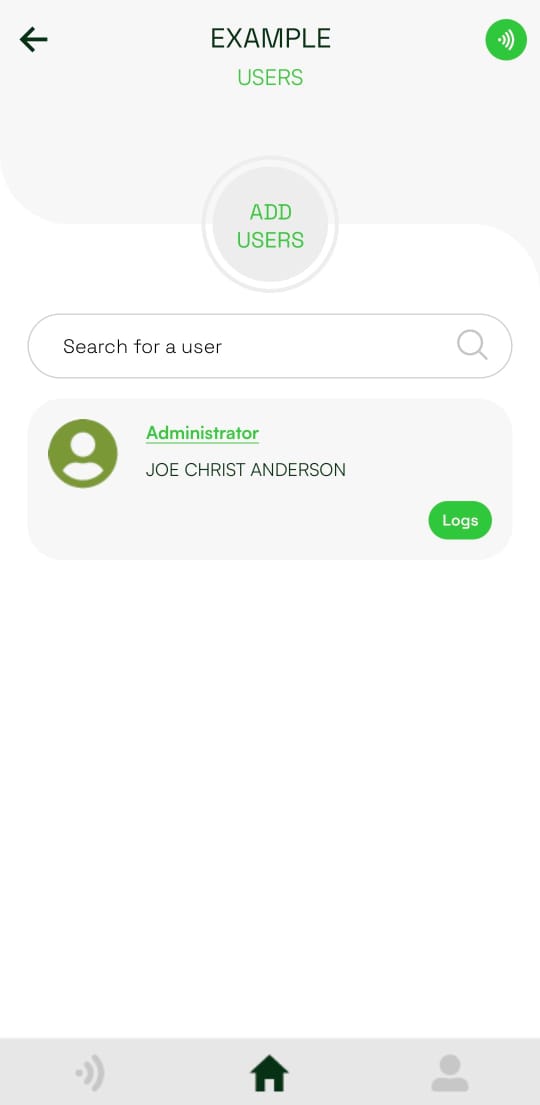
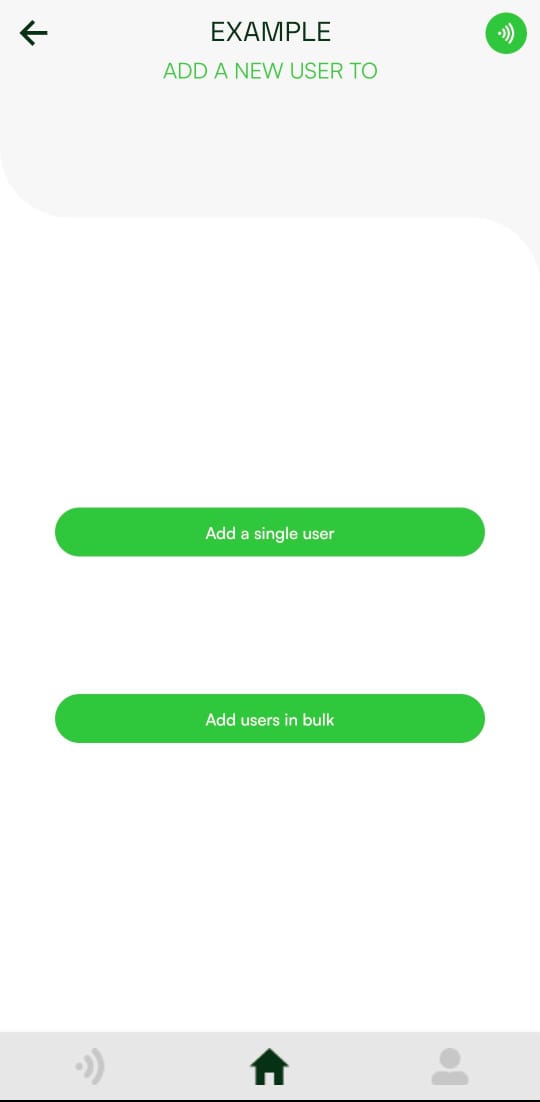
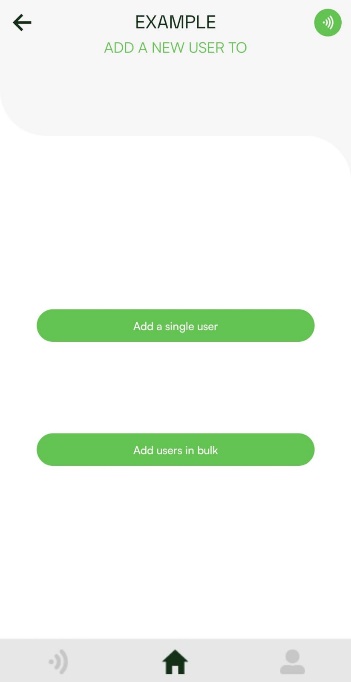
- Tap Add users, then select Add a single user.
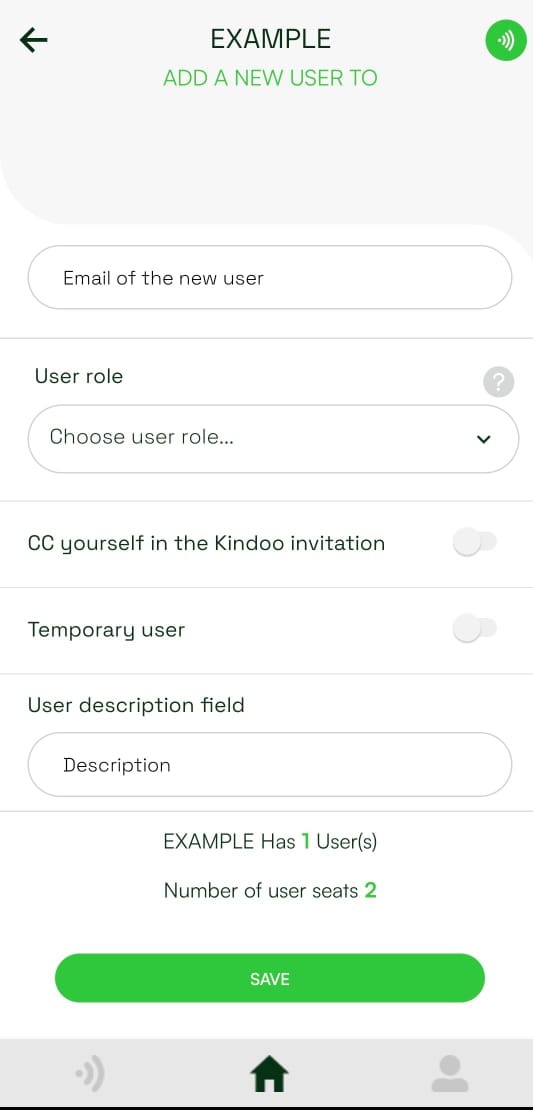
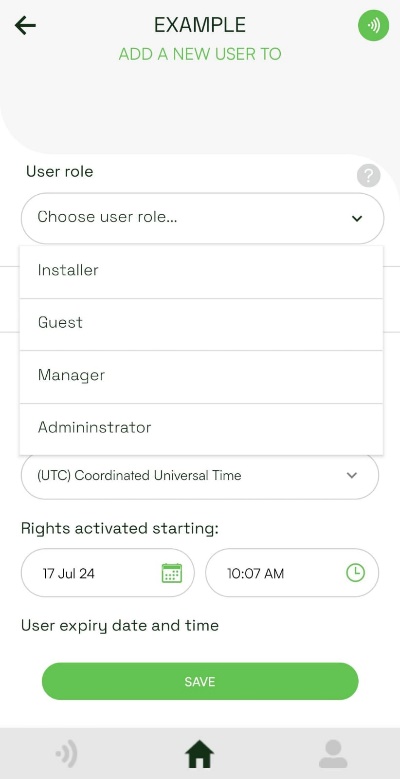
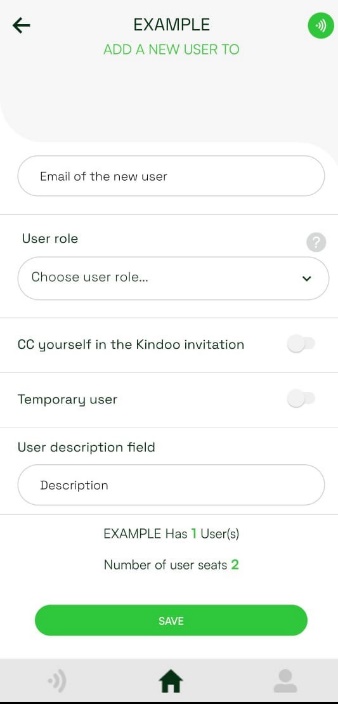
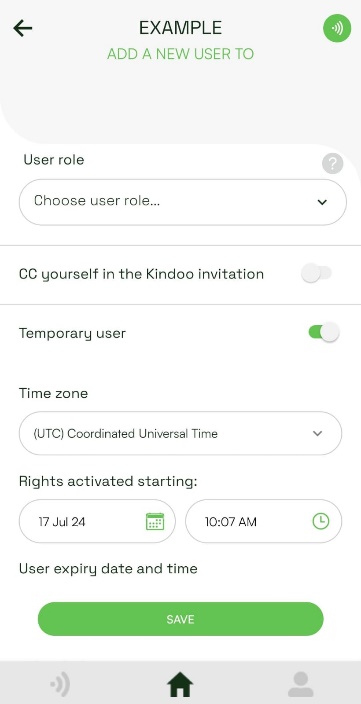
- Enter the user's full email address and select a role:
- Guest uses entry points according to assigned access rights.
- Manager can perform delegated site management tasks.
- Administrator has full site management access.
- Installer can link or unlink KINs and edit KIN settings.
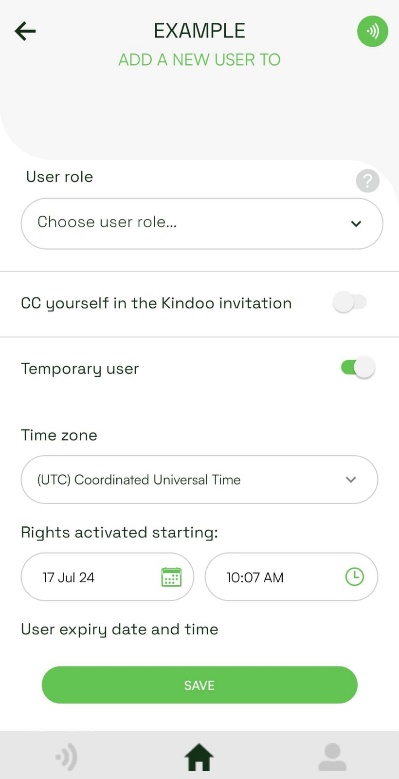
You can also add a searchable description or make the user temporary by setting an expiration date and time. Tap Save.
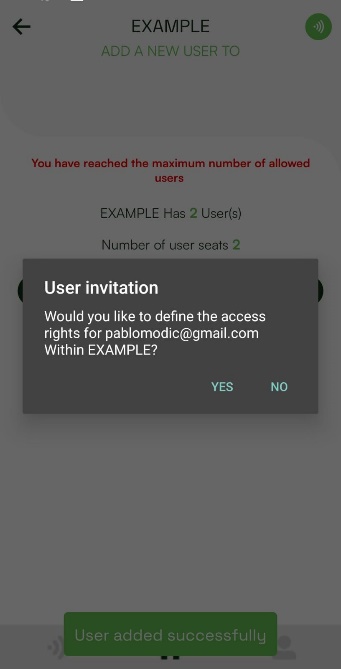
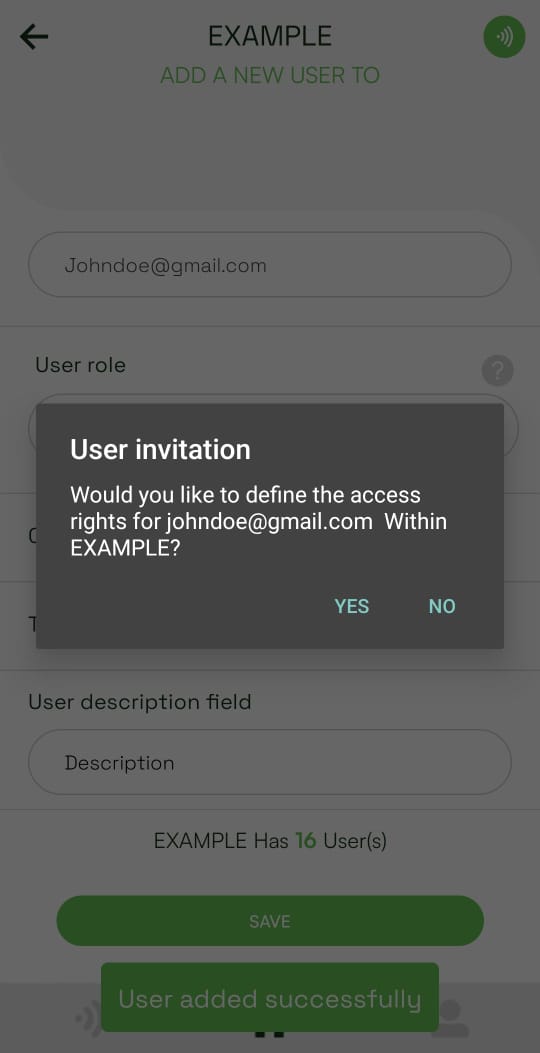
- Select Yes when asked whether you want to define access rights now. Select No if you plan to use an access rule instead.
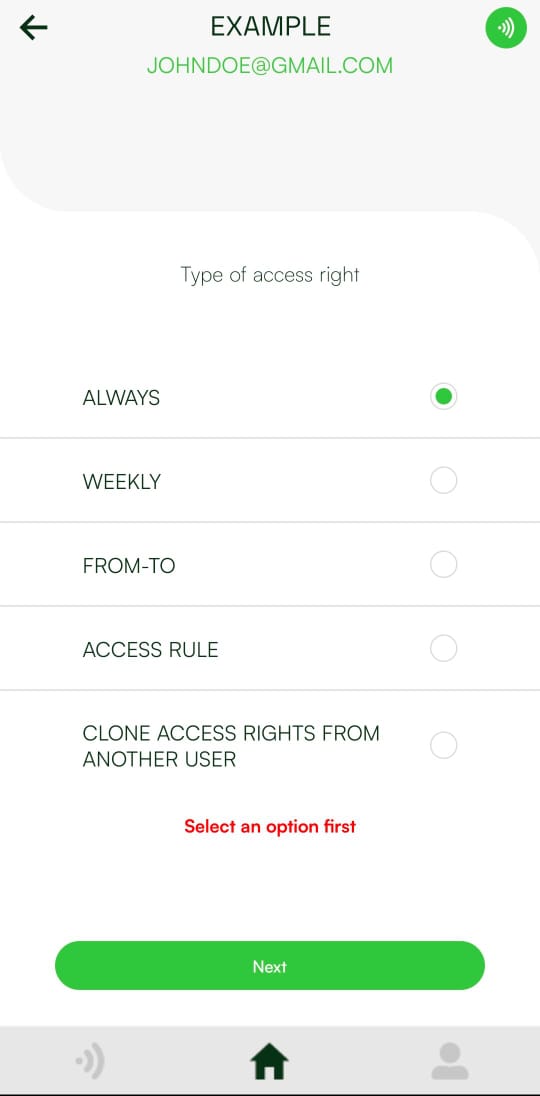
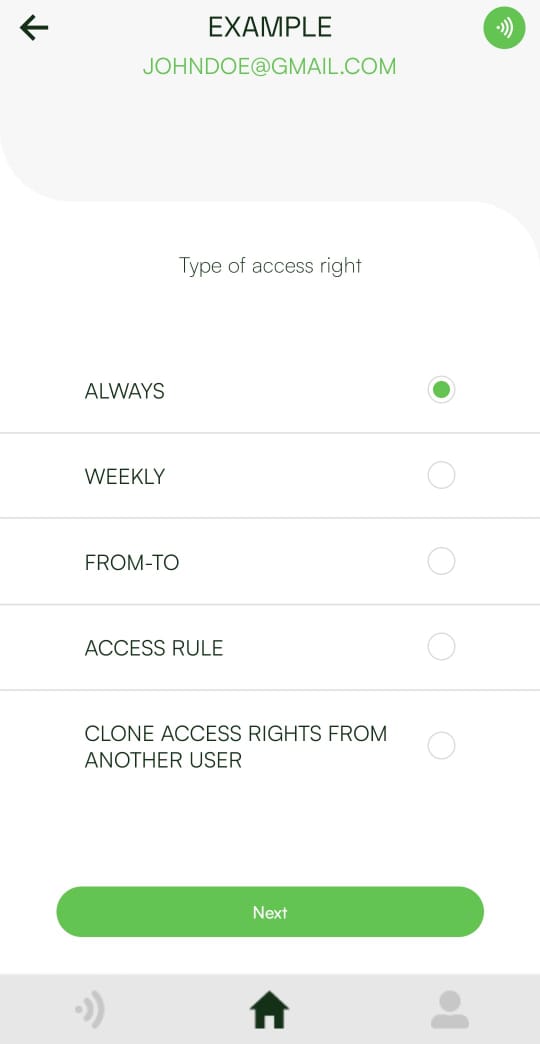
- Choose an access type:
- Always permits access at any time.
- Weekly permits access during recurring weekly periods.
- From-To permits access during one date and time range.
- Access rule uses a predefined rule.
- Clone access rights from another user copies an existing user's permissions.
Tap Next.
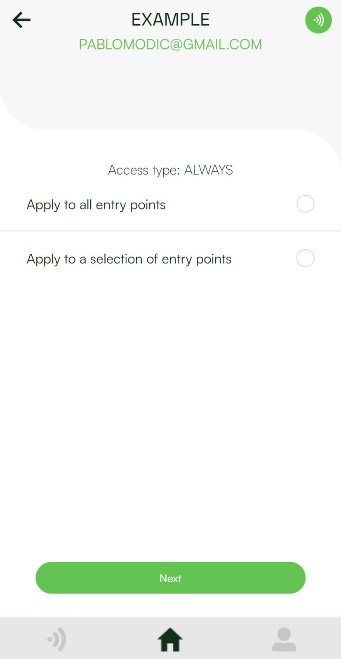
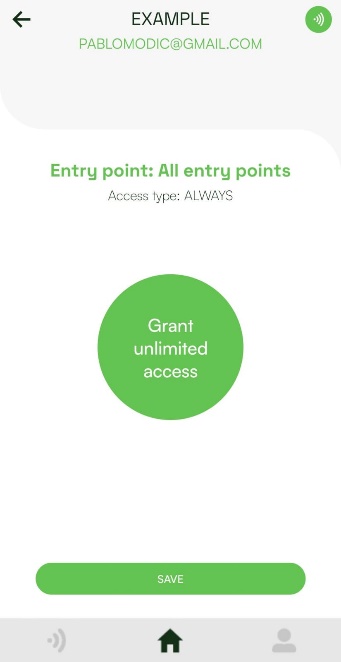
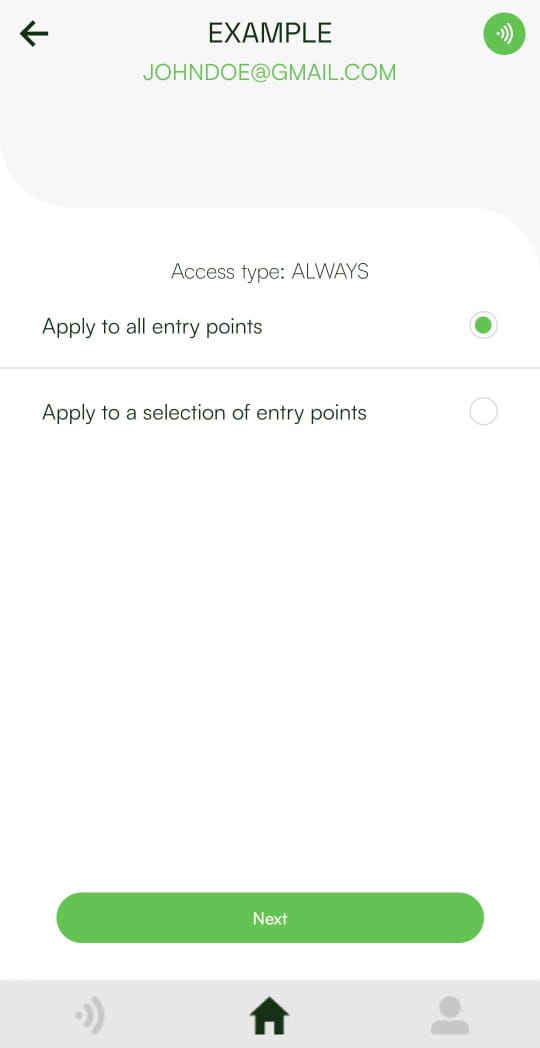
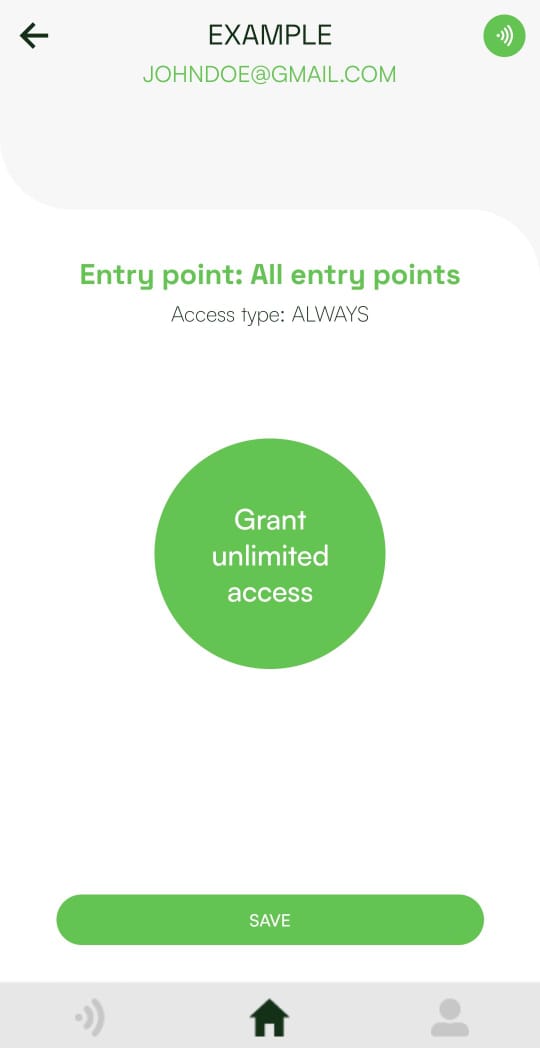
- Apply the access to all entry points or only selected entry points. Tap Next, review the grant, and tap Save.
Add an installer
Administrator permission required
Only a site administrator can add an installer.
- Follow the same invitation flow, but select Installer as the user role.
- If the installer also needs to operate the entry point, assign access rights during the invitation or through an access rule. The installer role alone does not grant door access.
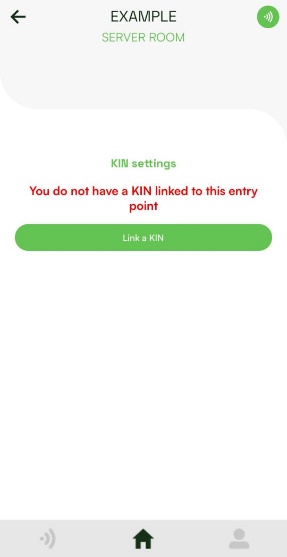
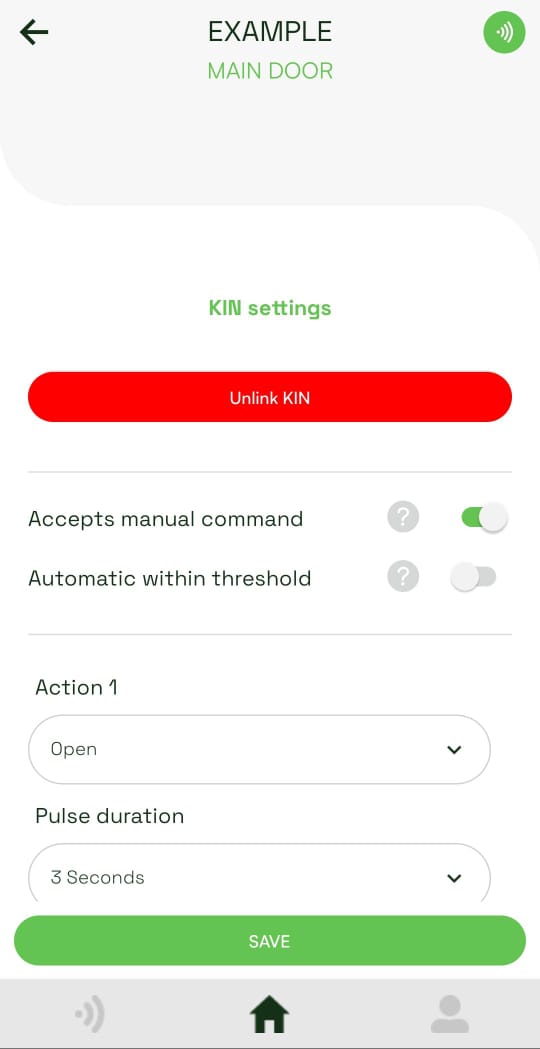
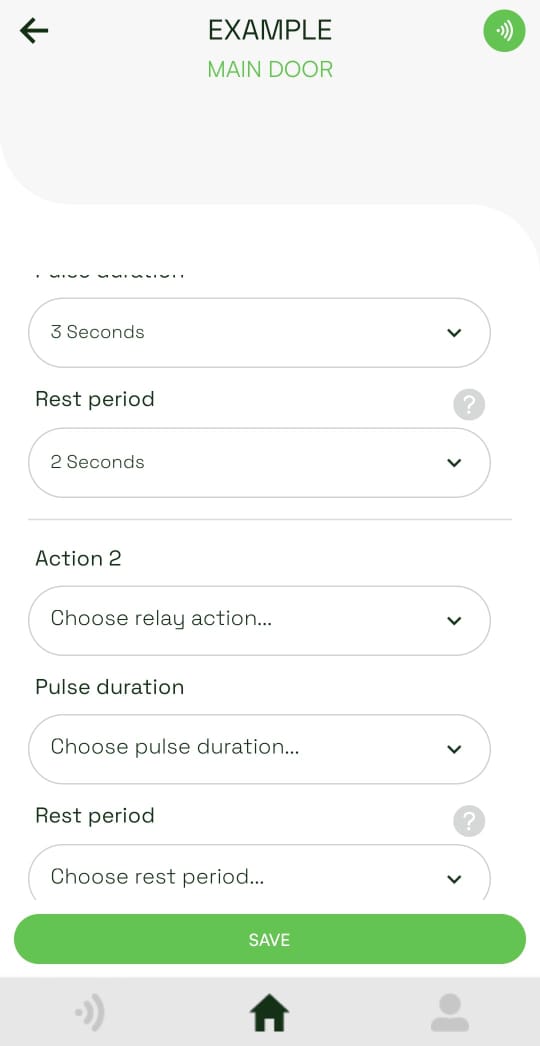
- Installers can link or unlink KINs and edit KIN settings for the site.
Edit or remove a user
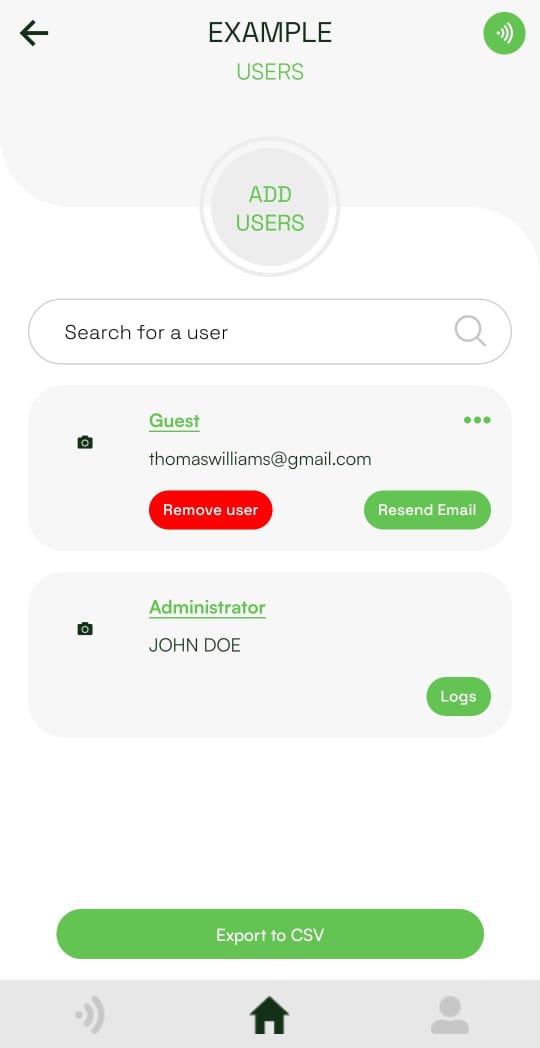
- Open the site and tap Users.
- Use the menu beside a user to remove the user from the site or resend the invitation email. Tap the user to change their role, access rights, description, or temporary-user settings.
warning
Removing a user revokes their access to the entire site.