Set Up Contractor Access
Contractor access lets a nearby KINDOO user operate a KIN by entering a PIN, even when that user does not have normal access rights to the entry point.
Each contractor-enabled entry point consumes one PIN license. One license supports up to 10 PINs on that entry point.
Purchase PIN licenses
- Open the site where you want to enable contractor access.
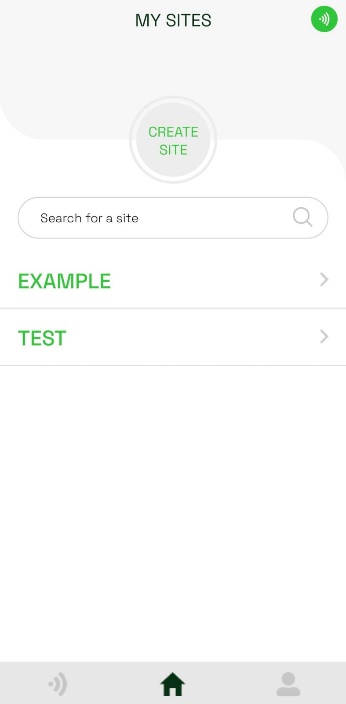
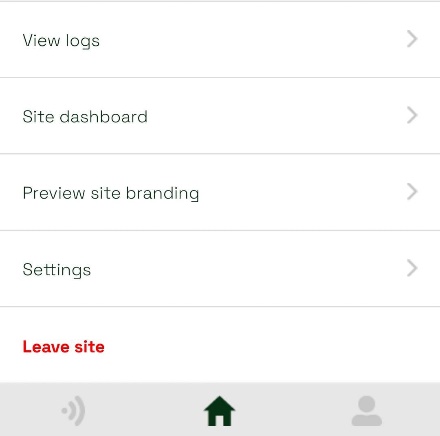
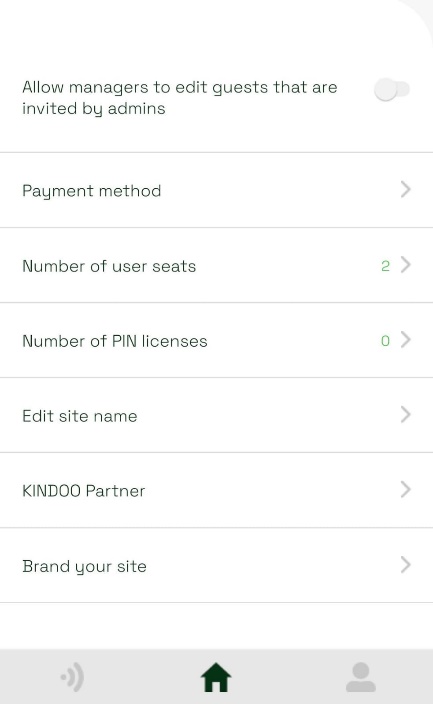
- Open Settings, then tap Number of PIN licenses.
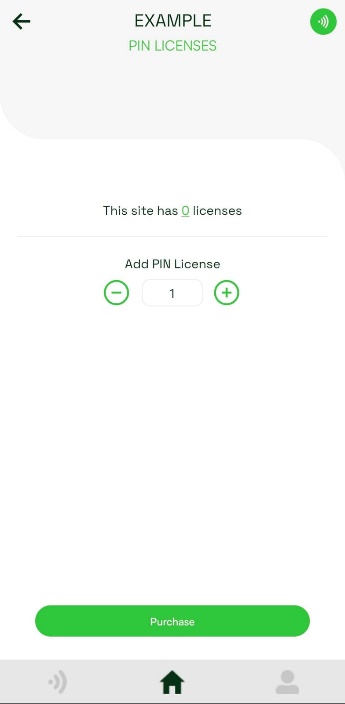
- Use the plus and minus controls to choose the number of licenses, then tap Purchase.
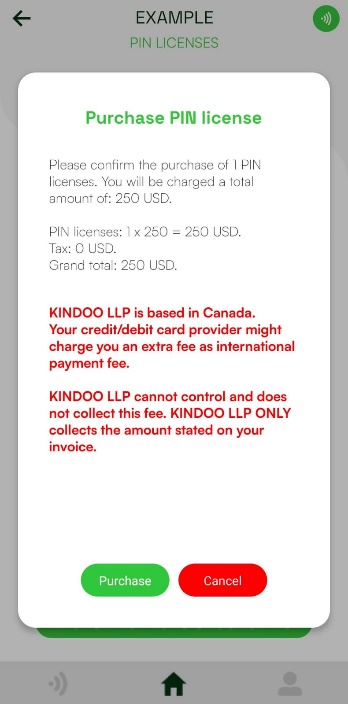
- Review the license count, price, and total in the confirmation dialog. Tap Purchase to confirm.
Enable contractor access on an entry point
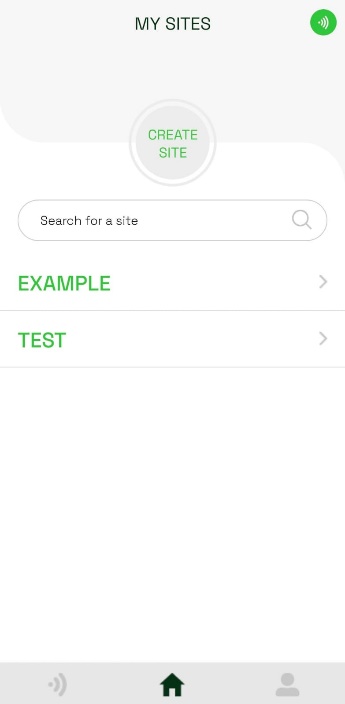
- Open the site, tap Entry points, and find the entry point you want to configure.
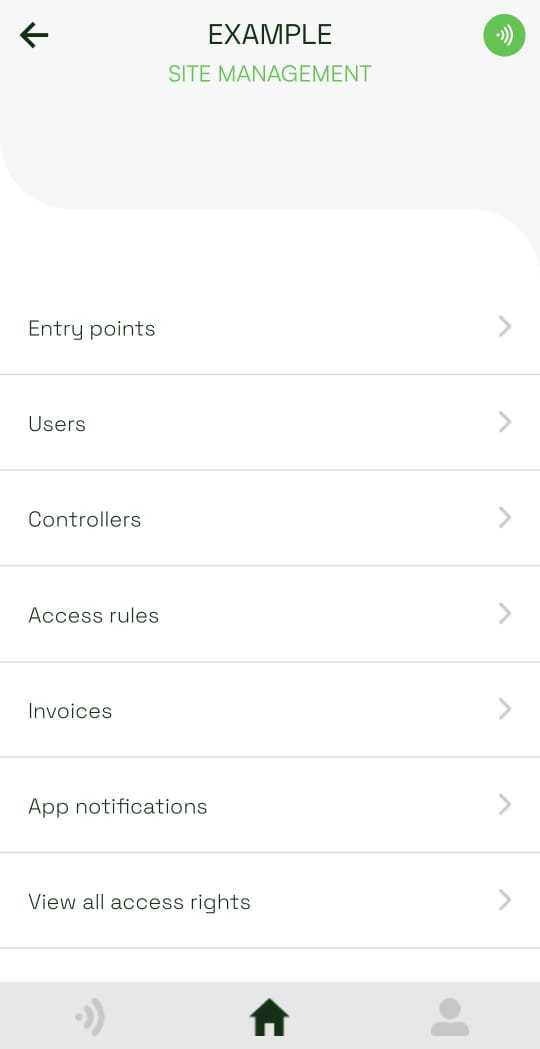
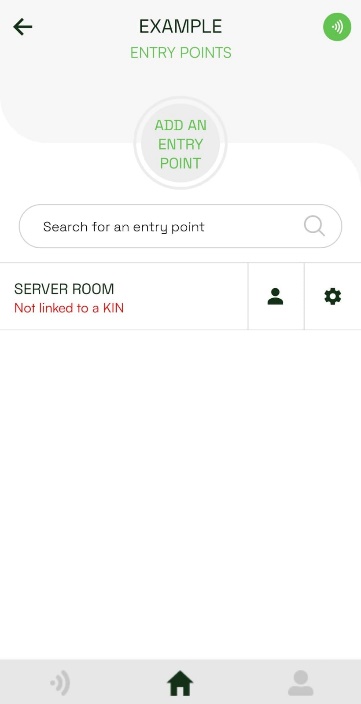
- Tap the settings icon beside the entry point.
- Scroll to Contractor access and turn on Allow contractor access. The PIN codes section appears.
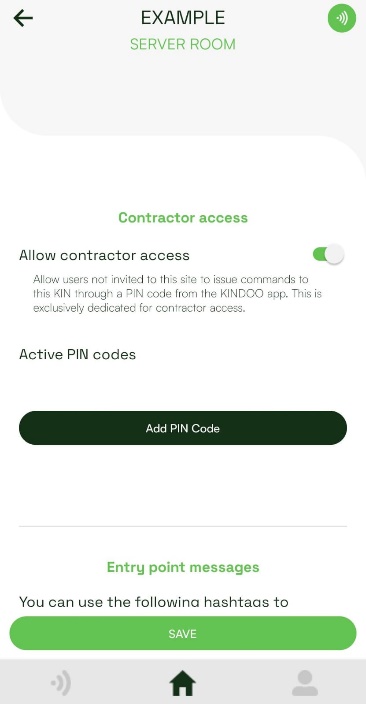
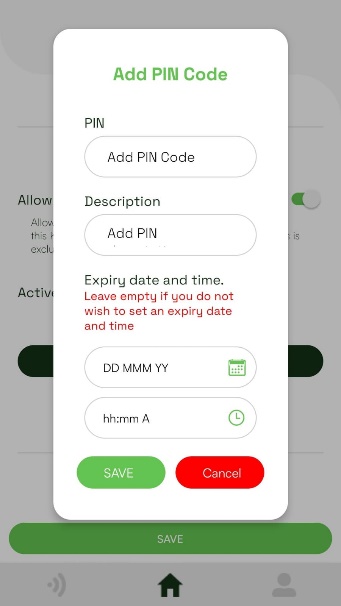
- Tap Add PIN Code. Enter a numeric PIN of up to 50 characters. You can also add a description and an expiration date and time. Tap Save.
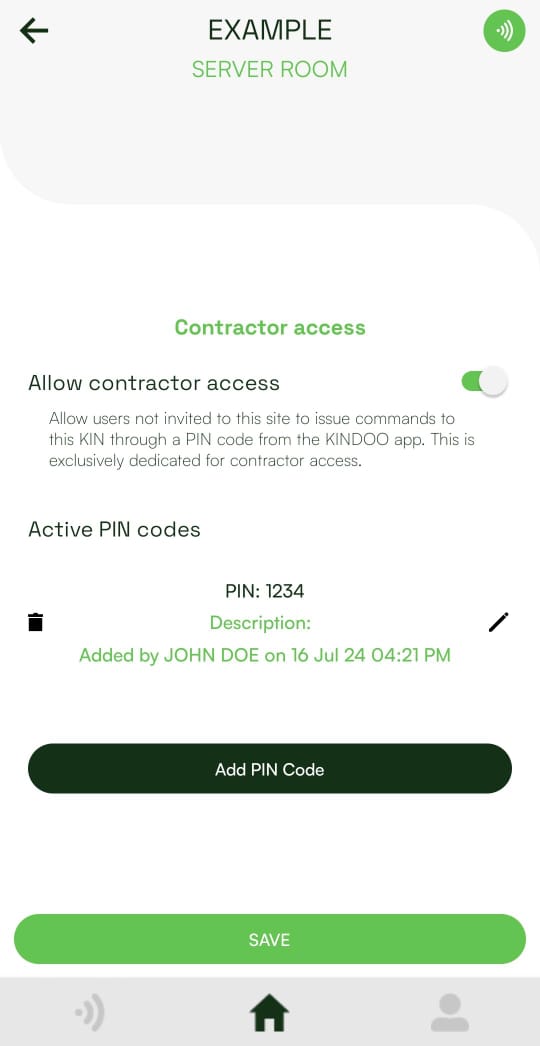
- Verify that the PIN appears in the list. From this list, you can edit or delete it later. Tap Save to finish updating the entry point.
warning
Share contractor PINs only with the intended users. Add an expiration time when access is temporary, and remove a PIN when it is no longer needed.