Notifications, Logs, and Dashboard
Configure app notifications
- Open the Type D site and tap App notifications.
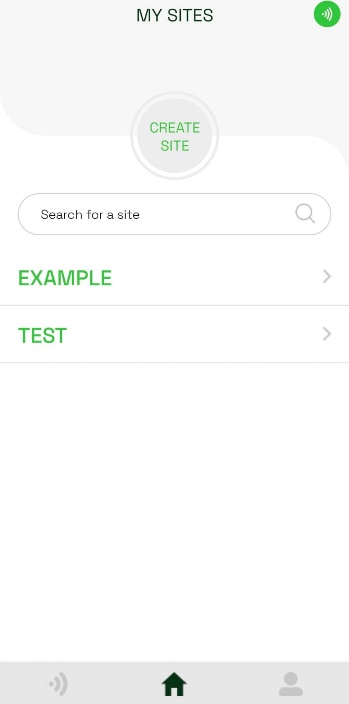
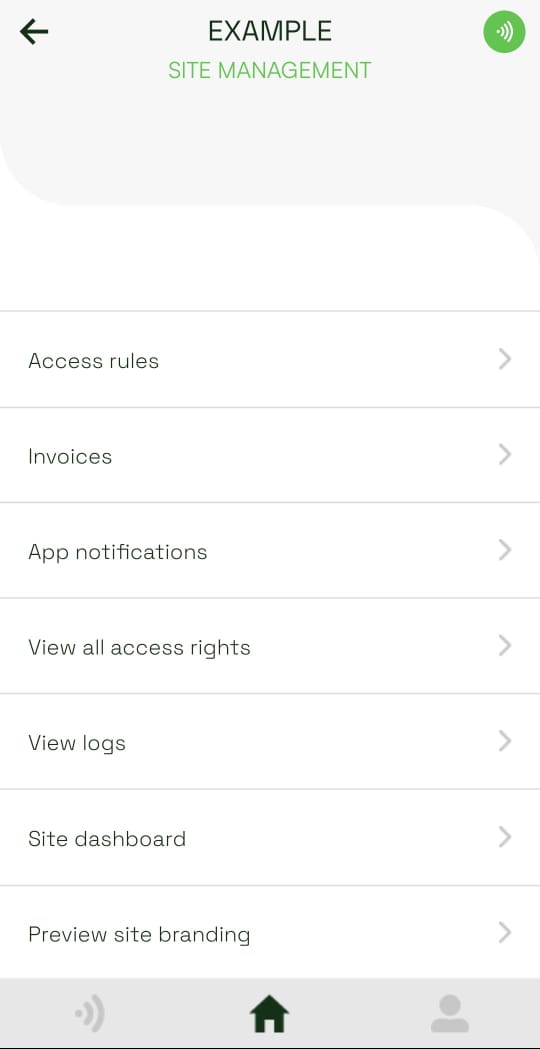
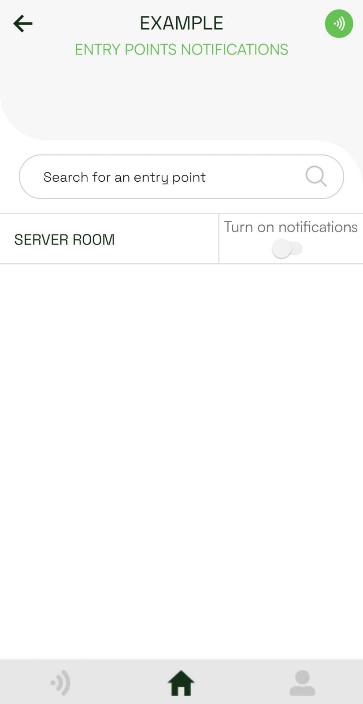
- Find an entry point and use its switch to change notifications. A gray switch means notifications are off; a green switch means notifications are on.
View and export logs
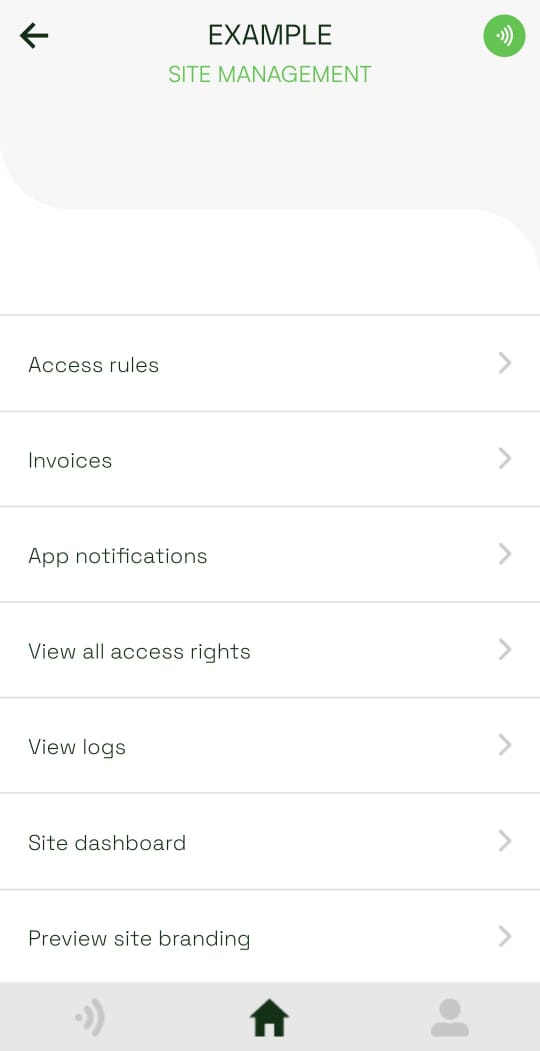
- Open the site and tap View logs.
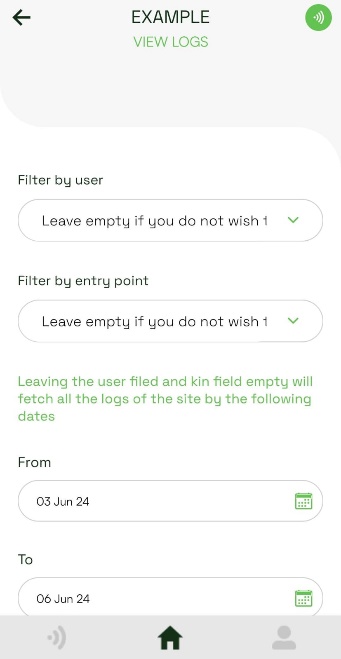
- Optionally filter by user, entry point, and a From and To date. Tap Submit to apply the filters.
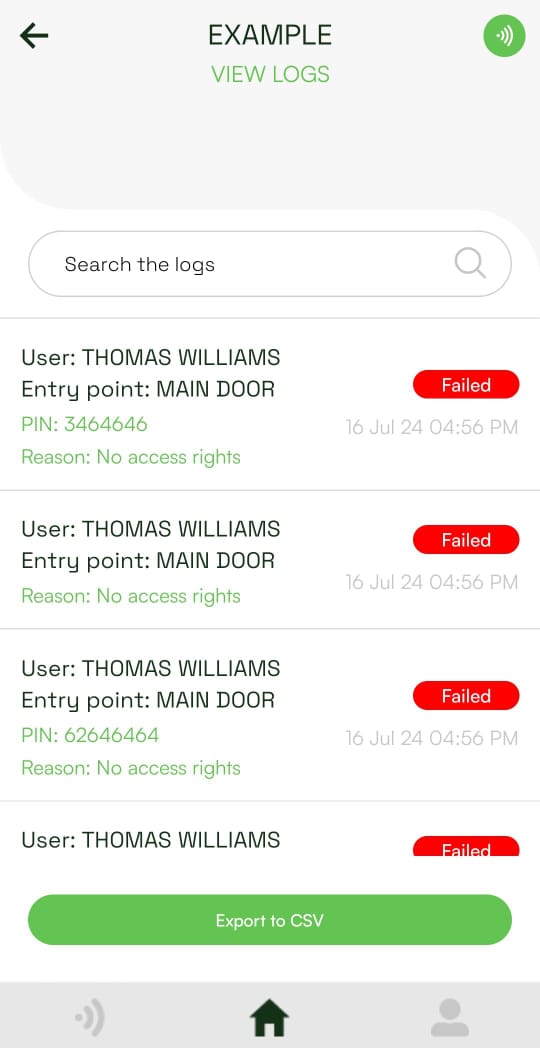
- Review the matching activity. If you leave the filters empty, the app displays all logs. Tap Export to CSV to download the displayed records.
Review the site dashboard
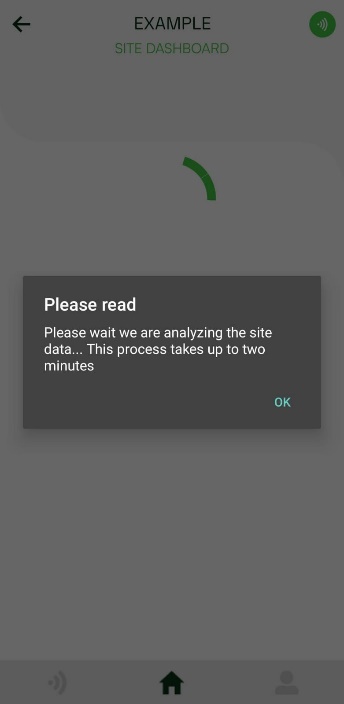
The site dashboard summarizes entry point usage and user activity. Generating it can take up to two minutes.
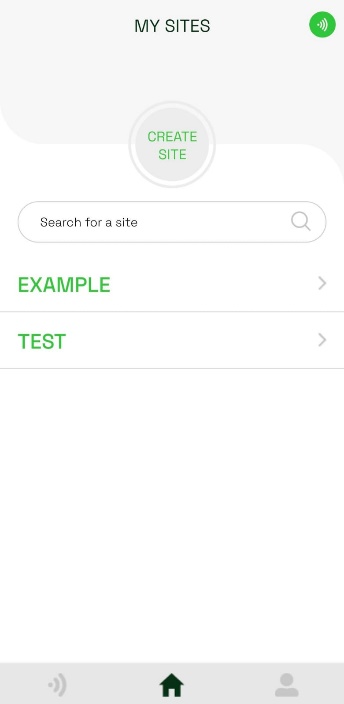
- Open the site and tap Site dashboard.
- Tap OK when asked to wait while the app analyzes the site data.
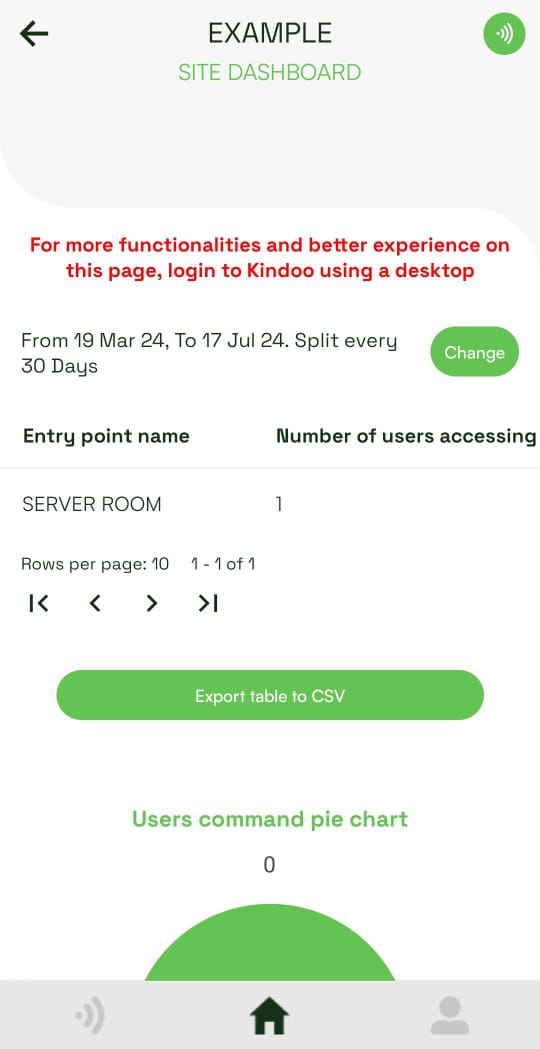
- Review the entry point table. It includes the number of users, lifetime commands, and activity split into intervals such as the last 20, 40, 60, or 120 days. Scroll horizontally to see all columns.
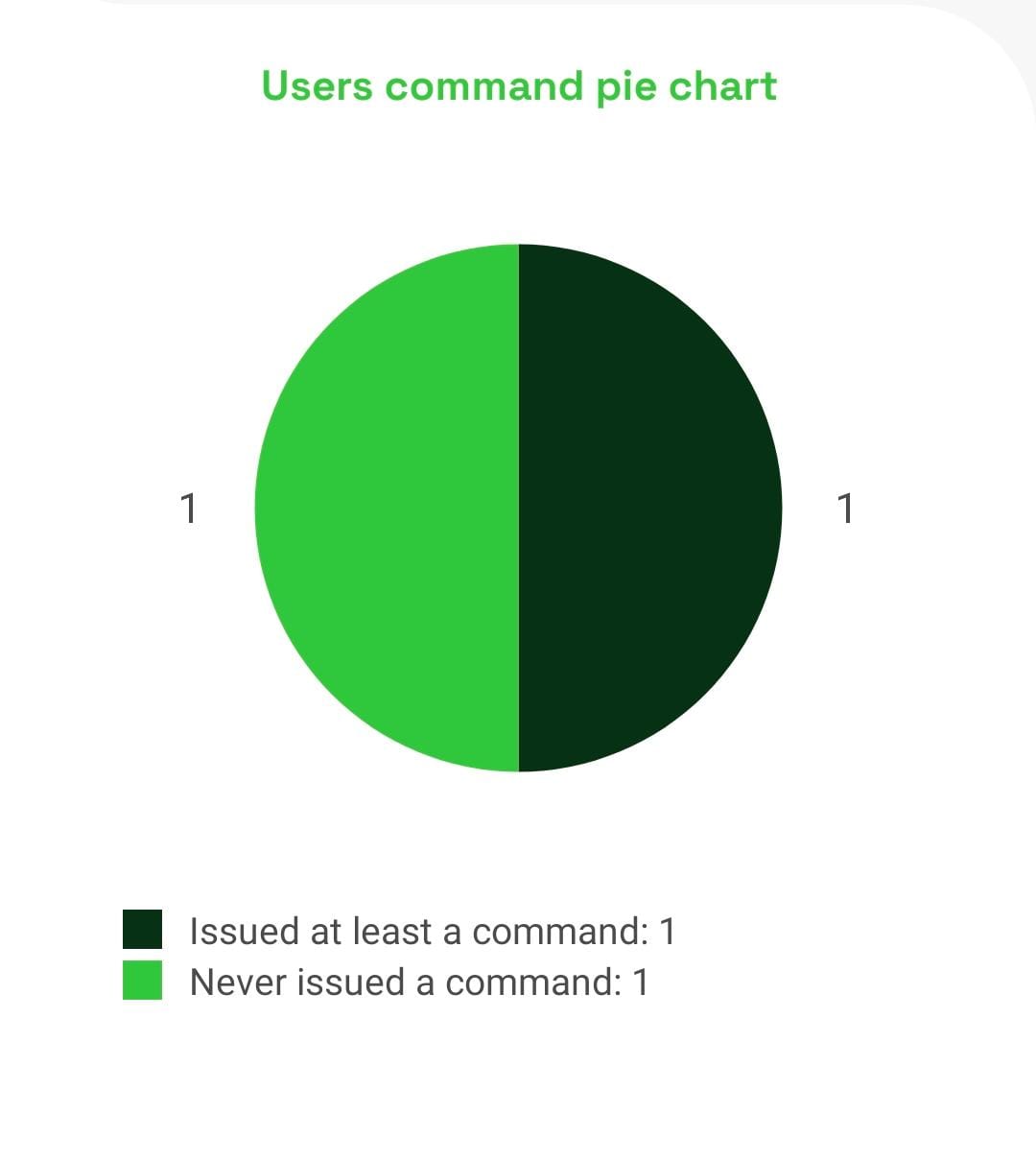
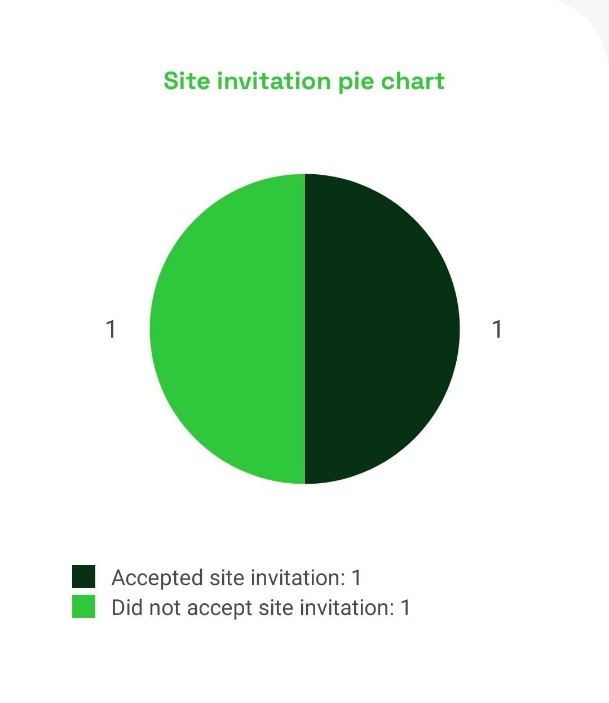
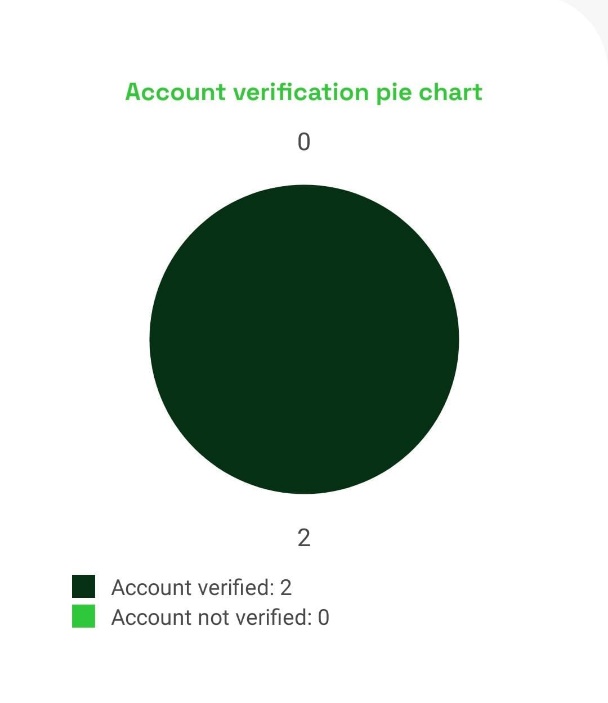
- Review the charts for user commands, site invitations, account verification, and user logins.
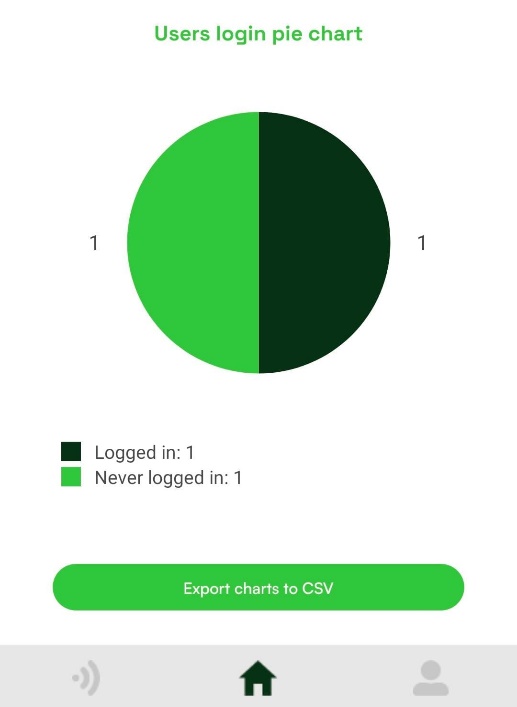
Use Change to choose a different date range or interval. Use Export table to CSV and Export charts to CSV to download the dashboard data.