Use Contractor Access and Unblock Users
Test access as an administrator or manager
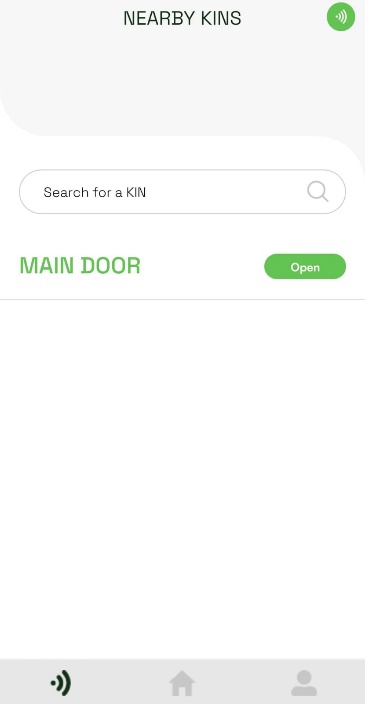
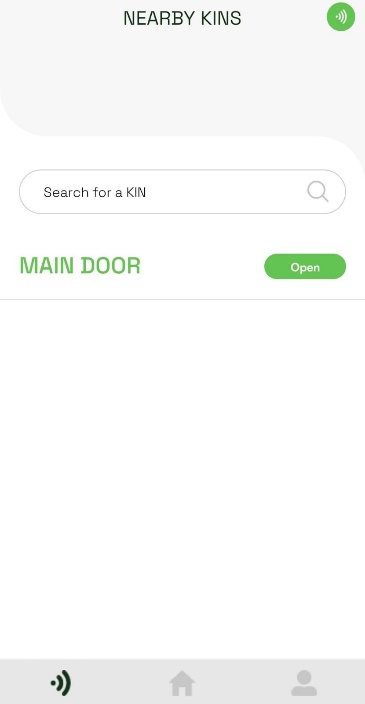
For administrators and managers, a KIN linked to a contractor-enabled entry point appears twice under Nearby KINs: once for normal access and once as Contractor access.
- Tap the Nearby KINs icon beside the Home icon.
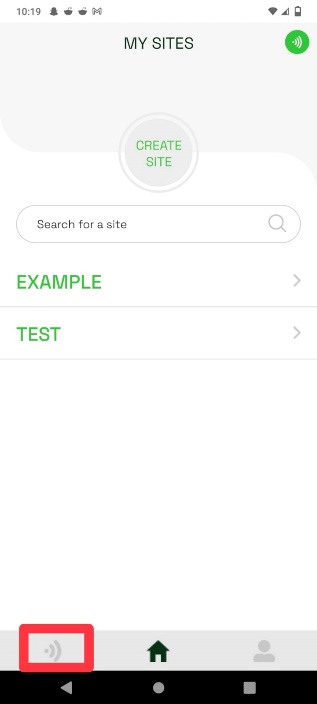
- Find the KIN marked for contractor access and tap Open.
- Enter one of the PINs configured for the entry point and tap Submit.
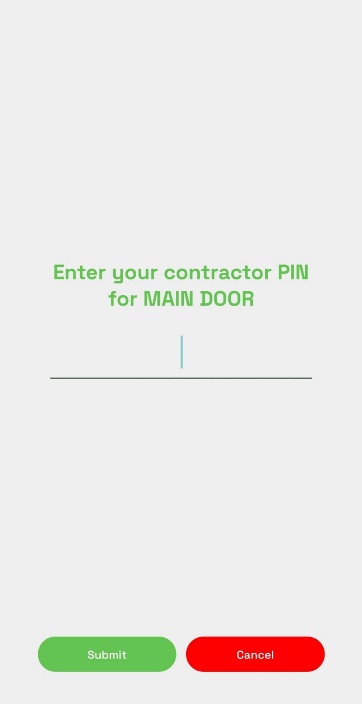
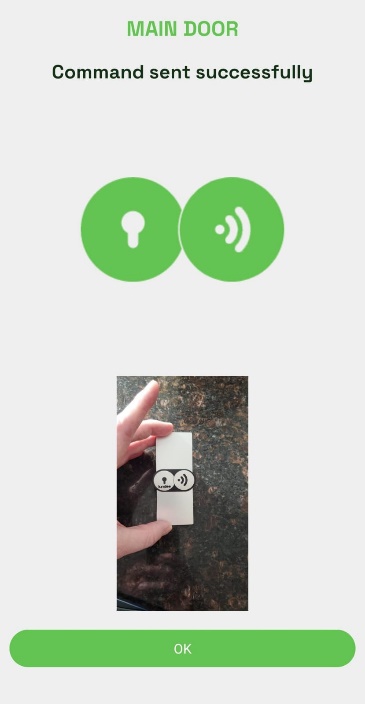
- With a valid PIN, the app sends the KIN command and displays a success message.
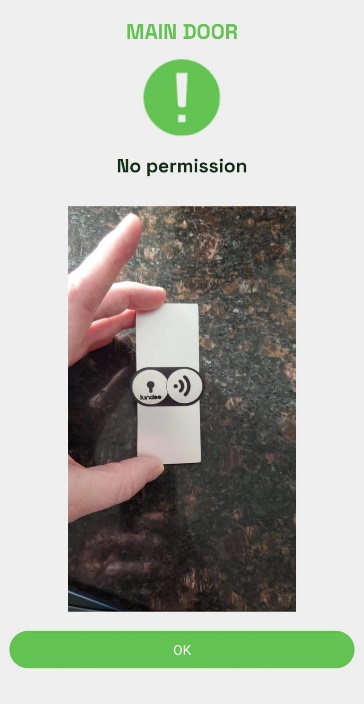
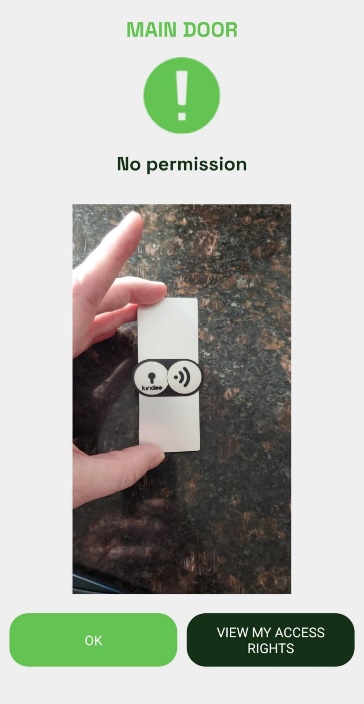
An invalid PIN displays No permission.
Use a PIN without normal entry point access
A guest without access rights to the entry point, or a KINDOO user who is not a site member, can use a contractor PIN while near the KIN.
- Open Nearby KINs and tap Open beside the contractor-enabled KIN.
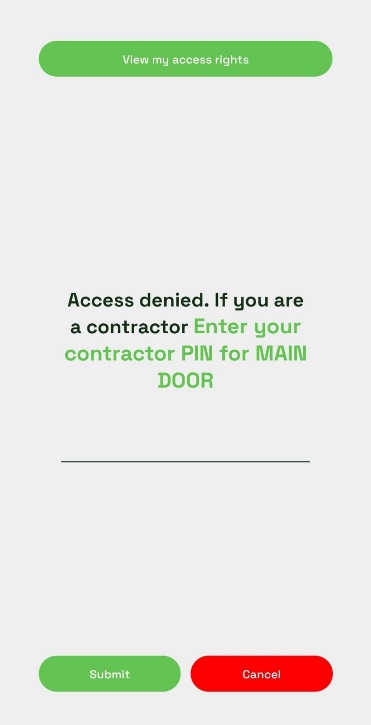
- Enter the PIN provided by the site administrator and tap Submit.
- A valid PIN sends the command and displays a success message.
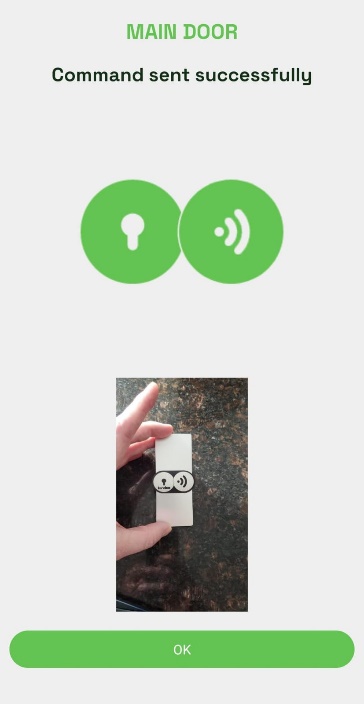
An invalid PIN displays No permission and gives the user an option to view their access rights.
warning
After five consecutive incorrect PIN attempts, the user is blocked from that entry point for 24 hours. A site administrator can unblock the user sooner.
Unblock a user
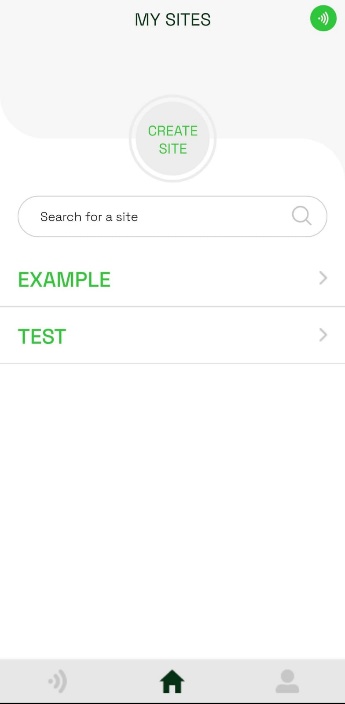
- As a site administrator, open the site where the user was blocked.
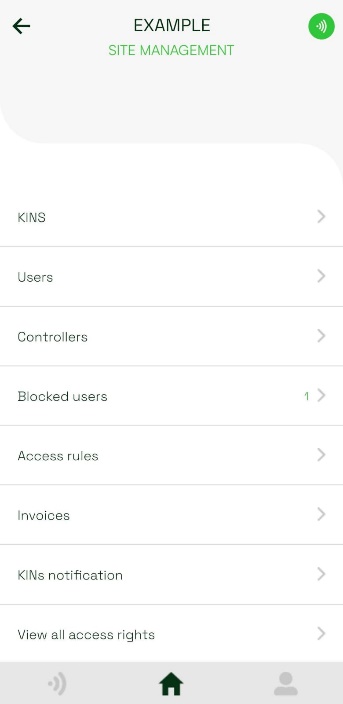
- Tap Blocked users.
- Find the user and entry point, then tap Unblock user.
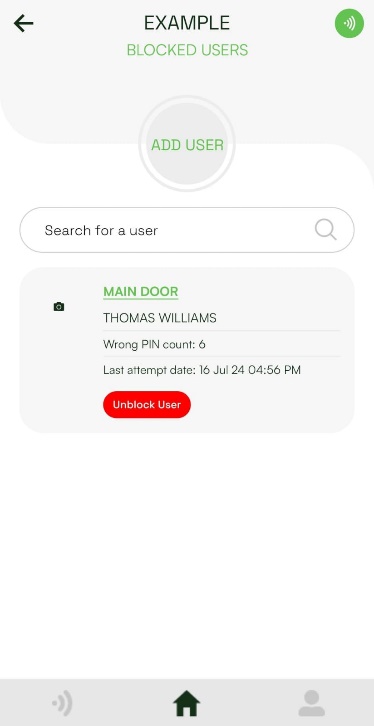
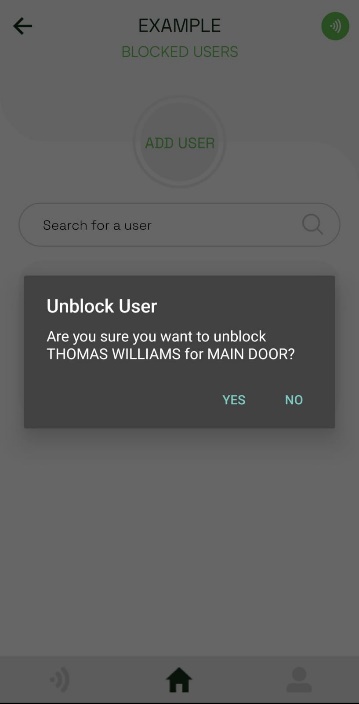
- Verify the user and entry point in the confirmation dialog, then tap Yes. The user is removed from the blocked users list.