Controller Schedules and Commands
Add an execution schedule
An execution schedule automatically triggers or shuts down an entry point relay at selected times.
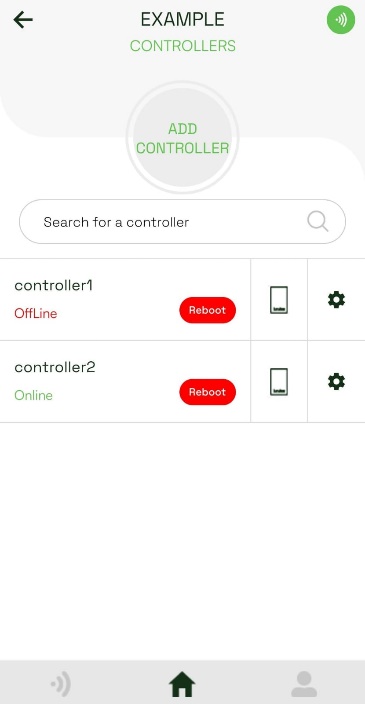
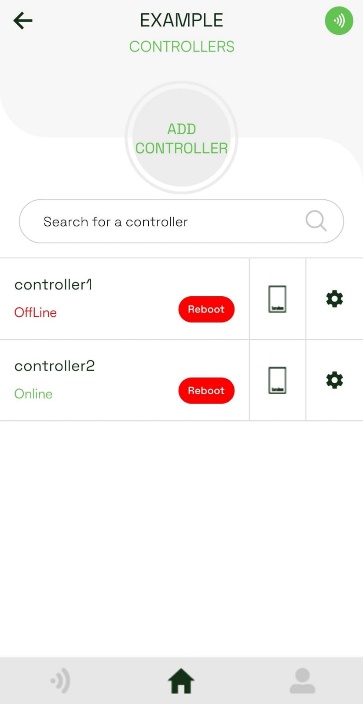
- Open the site's Controllers list and tap the device icon beside the controller.
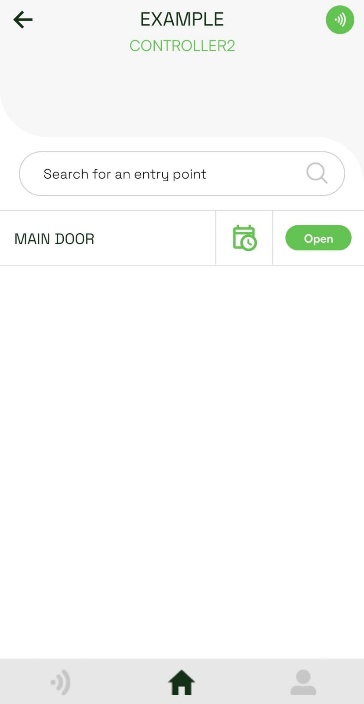
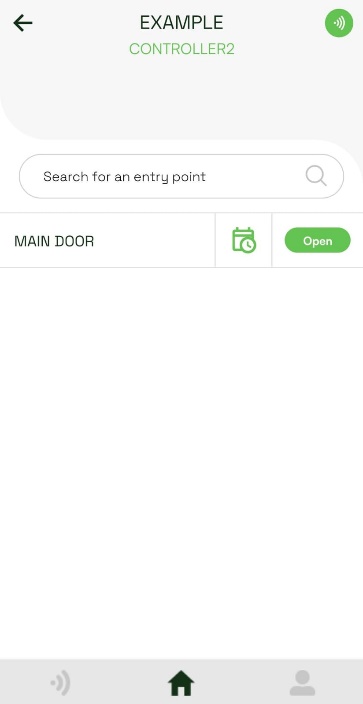
- Find the entry point and tap its calendar icon.
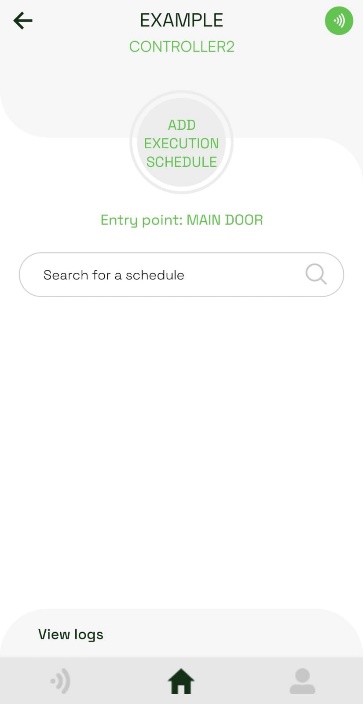
- Tap Add execution schedule.
- Enter a schedule name, select the correct time zone, and tap Next.
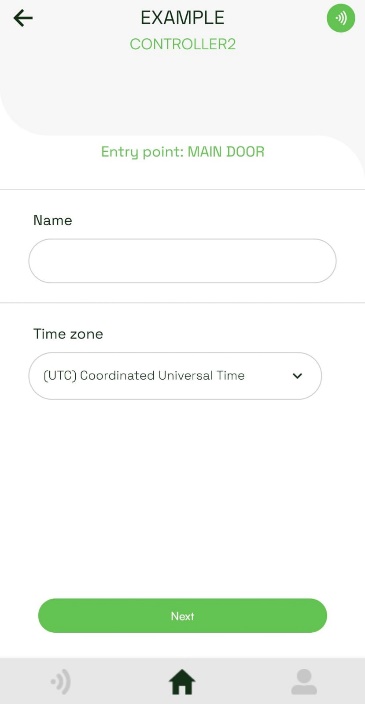
- Choose whether the schedule follows the app time zone or the selected time zone, then tap Next.
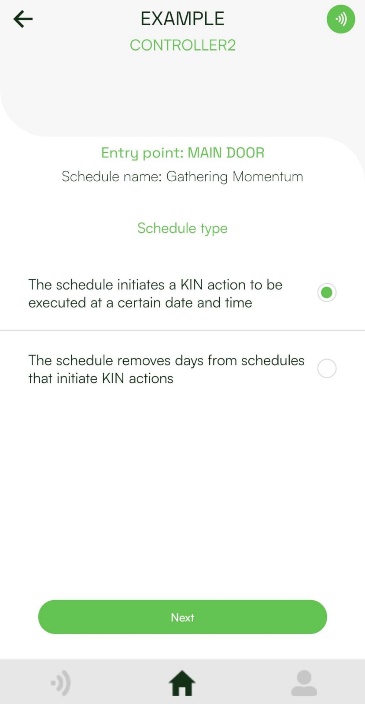
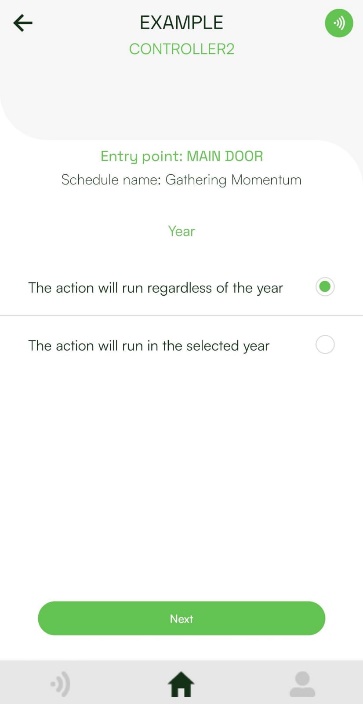
- Choose whether the action runs every year or only in a selected year. If you choose a selected year, specify it. Tap Next.
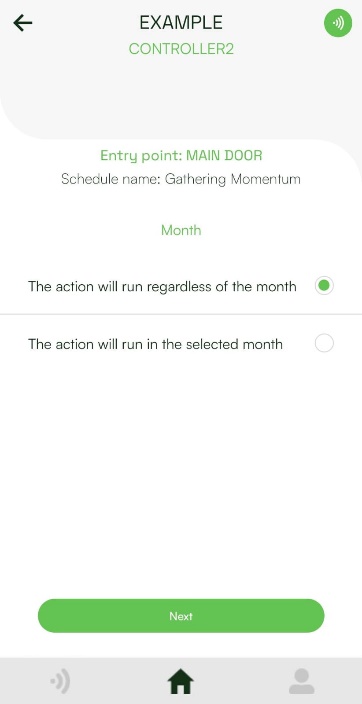
- Choose whether the action runs every month or only in a selected month. If you choose a selected month, specify it. Tap Next.
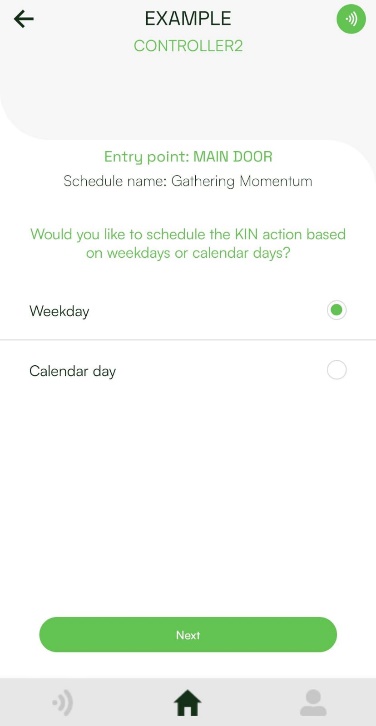
- Choose Weekday or Calendar day, then tap Next.
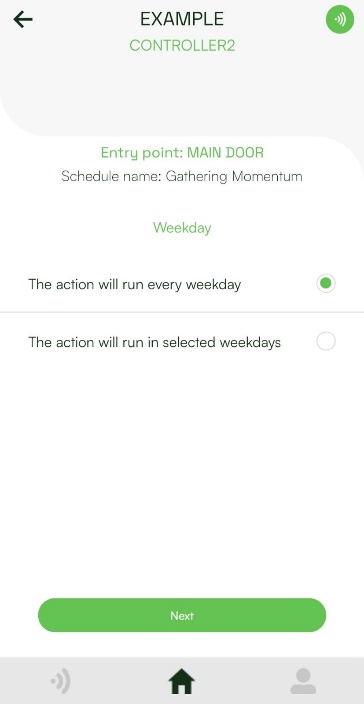
- For a weekday schedule, choose every weekday or selected weekdays. Select the weekdays when required, then tap Next.
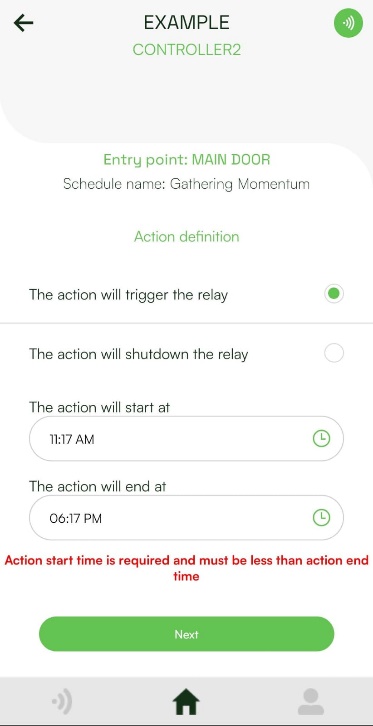
- Choose whether to trigger or shut down the relay. Set the action start and end times, then tap Next.
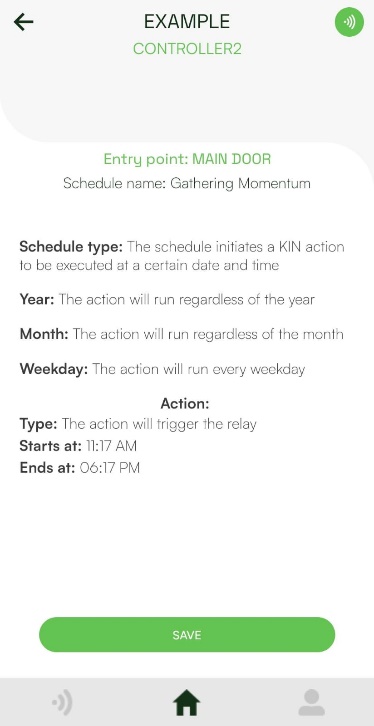
- Review the schedule and tap Save.
Send a controller command
- Open the site's Controllers list and tap the device icon beside an online controller.
- Find the entry point and tap Open.
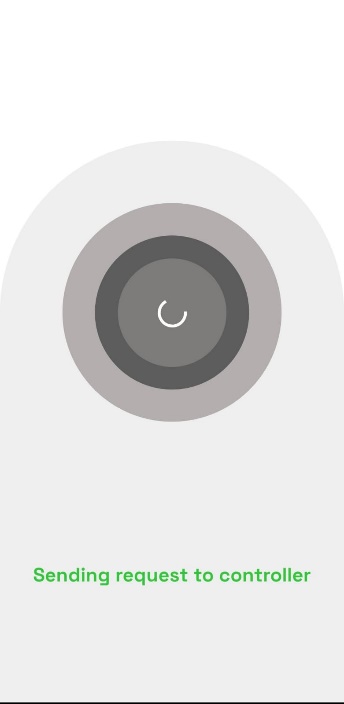
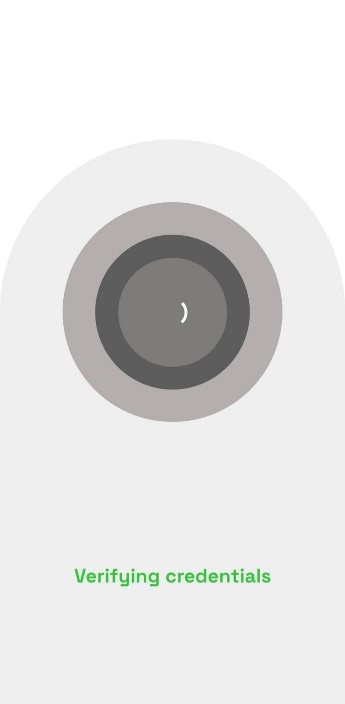
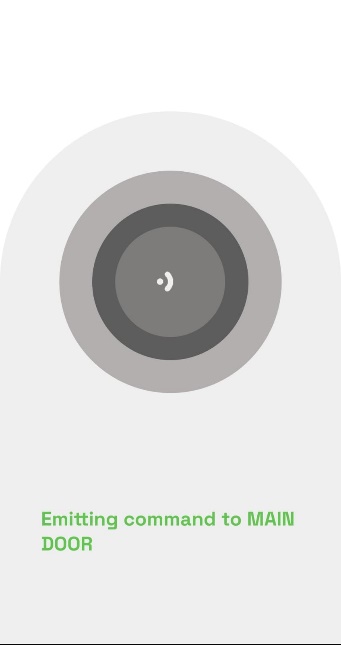
- The app reports each stage: sending the request, verifying credentials, and emitting the command to the KIN.
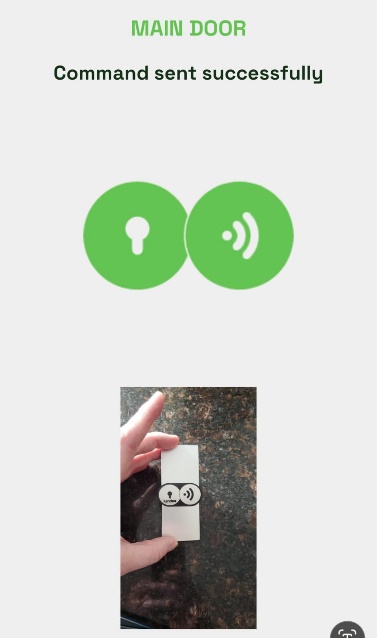
- A success screen confirms that the command was sent.
Troubleshoot a controller
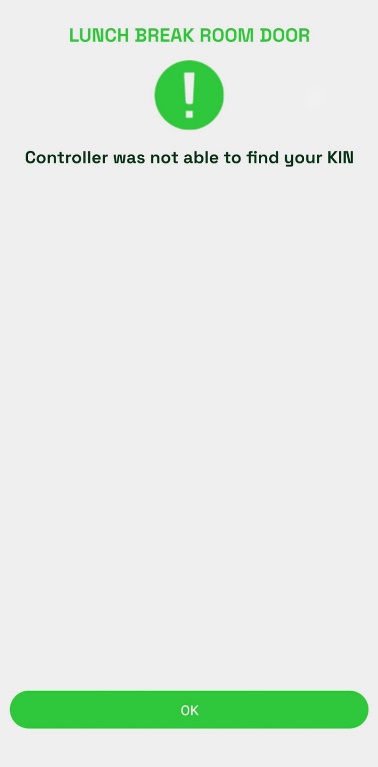
Controller was not able to find your KIN
The controller is too far from the KIN. Move the controller closer, then try the command again.
Controller request timeout
The app lost its connection to the KINDOO server. Log out, log back in, and retry the command.
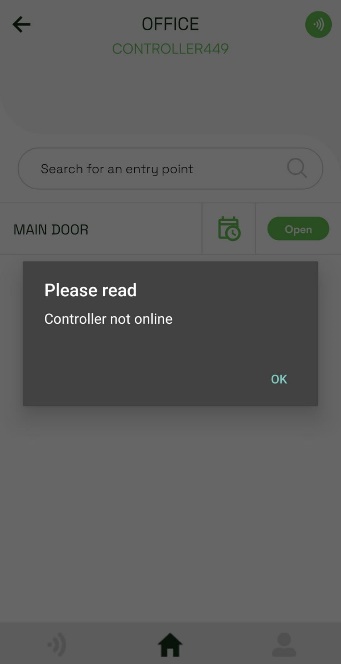
Controller not online
The controller cannot communicate with KINDOO servers. Check that it has power and a stable internet connection. If service does not recover, inspect the controller and its network connection at the installation site.